Contributed by: AnthonyS, FreeTaxUSA Agent, Tax Pro

Do you perform work or receive income that belongs to another entity that you own? At the end of the year, you may receive a Form 1099-NEC reporting the income under your name and Social Security number when the income should have been reported to another entity, such as an S corporation, partnership, LLC, or other business entity. This could also be another sole proprietorship business with its own employee identification number (EIN).
What do you do now?
Fortunately, this is a common issue and can usually be corrected using the nominee method.
The basic concept is simple: First report the income on your individual tax return so it matches IRS records, then offset it with a nominee expense that transfers the income to the correct entity.
The entity that actually earned the income must then report it on its own tax return.
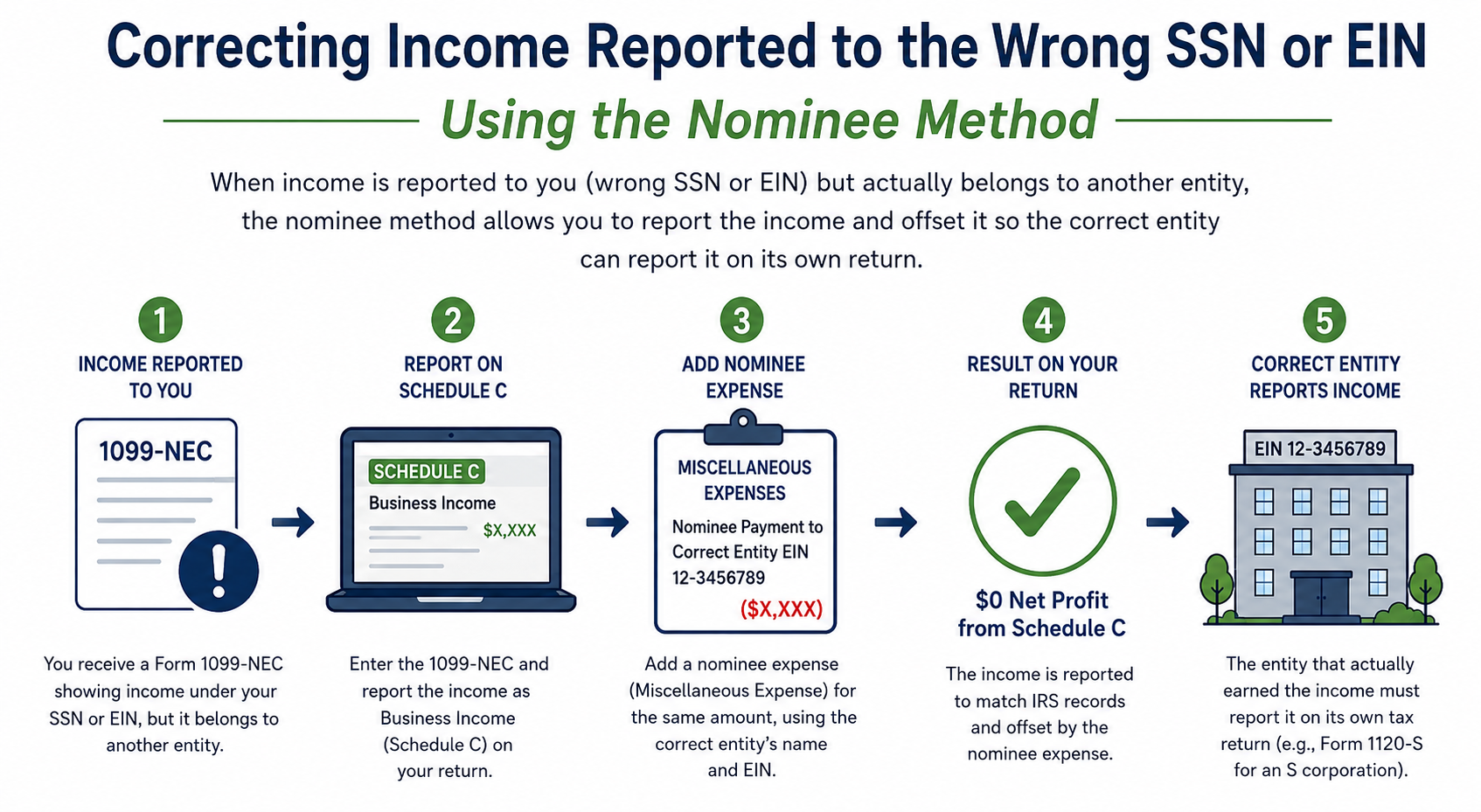
Step 1: Enter the Form 1099-NEC
- Go to Income > Business/Rental Income > 1099-NEC / 1099-MISC.
- Select + Add a 1099-NEC / 1099-MISC.
- Select Form 1099-NEC.
- Enter the information exactly as it appears on the form.
Step 2: Assign the Income to Schedule C
After entering the form, the software will ask:
"What kind of income is this?"
- Select Business Income (Schedule C).
- Select Save and Continue.
- Continue past the Link this income to a Business? screen.
- Continue past the Business Tips and Overtime screen.
- Enter a description for the business and select Save and Continue.
If this is the only incorrectly reported Form 1099-NEC you received, answer No to both questions on the Did you have more income? screen and select Save and Continue.
Step 3: Add the Nominee Expense
You will now reach the page titled:
"Did you have any of these expenses?"
- Answer No to all expense categories except “Any other expenses”.
- Answer Yes for “Any other expenses".
- Select Save and Continue.
Scroll to the bottom of the expense page and locate Miscellaneous Expenses.
Enter a description such as:
Nominee Payment to ABC Company EIN 12-3456789
Enter the expense amount equal to the amount reported on Form 1099-NEC.
Select Save and Continue.
Step 4: Complete the Schedule C
Continue through the remaining Schedule C questions.
Once finished, return to the Schedule C section to complete any required business information.
- From the Income menu, select Business Income (Schedule C).
- Select Edit next to the business name.
- If a Needs Info notification appears next to Basic Business Information, select Start.
- Review the information, make any necessary corrections, and continue through the prompts.
After completing the required information, continue through the remaining Schedule C screens until you return to the Your Income summary screen.
Step 5: Verify the Results
On the Your Income page, scroll down to Business and Rental Income.
If everything was entered correctly, you should see:
- The Form 1099-NEC income included in Form 1099-NEC and Form 1099-MISC Income.
- $0 net profit reported as Business Income from the Schedule C activity.
This indicates the income was reported to match IRS records and offset by the nominee expense.
Final Reminder
Using the nominee method on your individual return does not eliminate the need to report the income on the return of the entity that earned it.
Going forward, consider contacting the paying entity to have them report the income to the correct entity in future years. In the meantime, the nominee method can help you clearly report where the money went and show that it was all accounted for.
Need Help?
The nominee method is not appropriate for every situation. If you’re unsure whether this procedure applies to your circumstances, consider consulting a qualified tax professional. If you are using FreeTaxUSA and need assistance, our support team is available to help guide you through the process.